


I’ll save you 20 mins if you don’t want to read a whole blog post:
Copy it on a sticky note and leave it under your monitor for your next interview.
Sponsored Link
Meet Rico by RevenueCat
Rico is your AI-powered app growth advisor. Ask questions about churn, pricing, experiments, or revenue trends and get actionable answers using your subscription data, benchmarks, and store configuration insights.
I usually love the iOS Knowledge Interview™ format: 45 mins to flex my encyclopaedic knowledge of the Swift compiler, method dispatch, memory management or Mach-O binaries.
Until recently. I was asked to “explain the rendering pipeline on iOS”.
“Uh… so there’s a screen. It has pixels. It detects touches. I reckon Core Animation probably does something up in there…”
— Jacob Bartlett, 2025 (I didn’t get the job)
It’s easy to let this slip. The system abstracts away the heavy lifting.
But this heavy lifting controls every single pixel on every single frame of every app you build. It’s worth taking the time to understand it properly.
The UI pipeline is a complex beast, orchestrating across several lightly-documented systems. It’s tough to find a throughline that can explain it all. Fortunately, you’re in good hands.
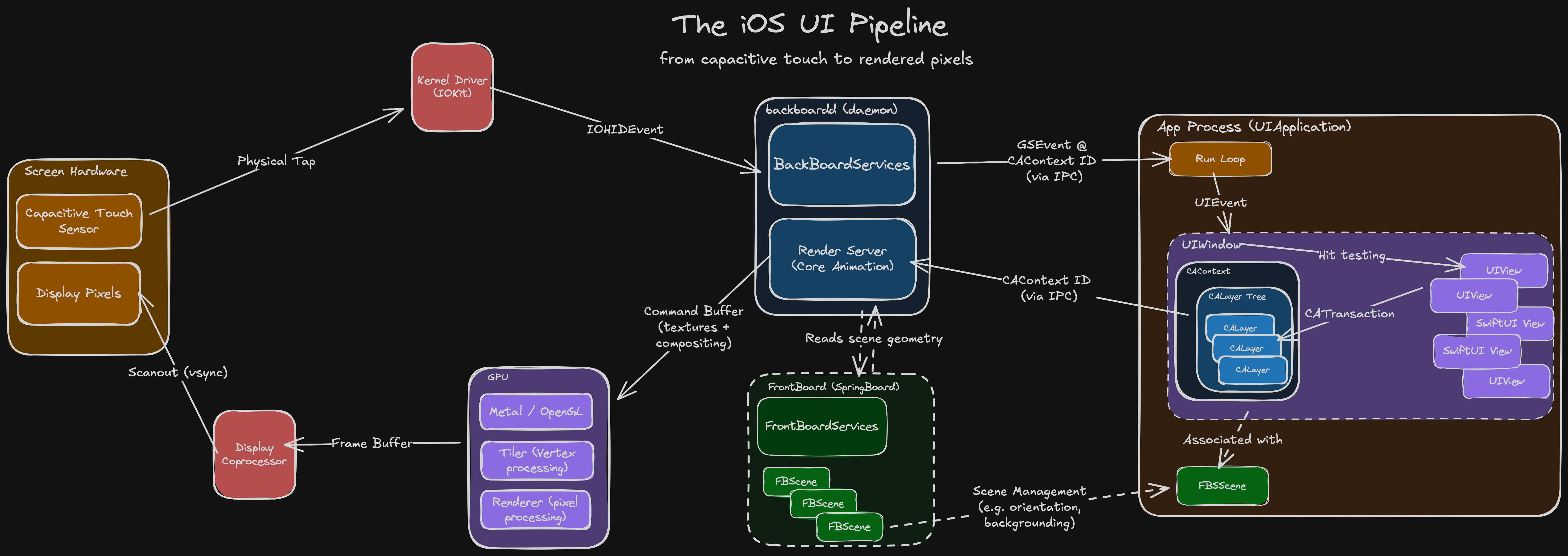
We’re tracking the journey of a touch event: from sensors, to your code, and back up to pixels, through every system along the way:
backboardd handles the event and forwards it to your app process.
Your code performs a CATransaction to update its layer tree.
The UIWindow’s CAContext bridges to the render server via IPC.
The render server rasterises and composites layers across each process.
It then issues drawing commands to the GPU for compositing and animation.
A frame buffer of pixels is generated and sent to the display hardware.
Handling Physical Touch
The Hardware
In the late 90s, Uncle Sam funded some research that led to breakthroughs in multi-touch capacitive touch screens. In 2007, Daddy Steve stuck this in front of a jumble of miniaturised tech that was finally ready for prime-time: modern microprocessors, a cellular radio, and high-capacity lithium batteries. The rest is history.
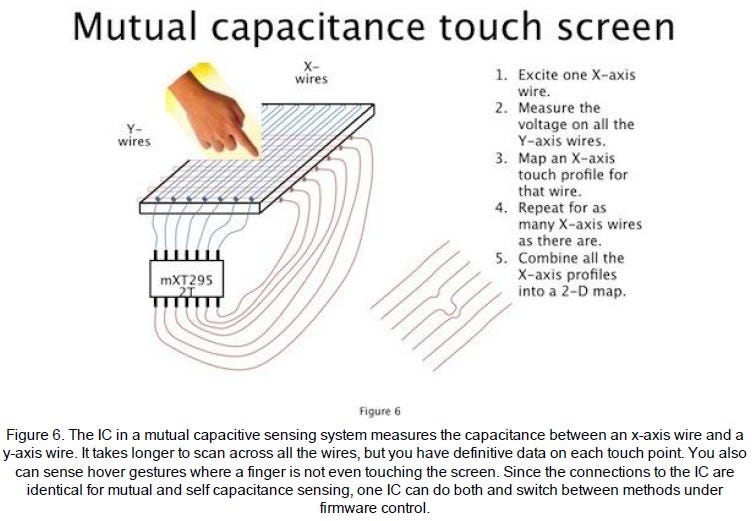
Under the glass of your iPhone screen, there is a grid of transparent criss-crossing X and Y wires. A microcontroller applies an electric field across each X wire, and measures signals across each Y wire.
Because human flesh is electrically conductive (don’t ask me how I found this out), the presence of a finger changes the electrical capacitance measured at XY intersections. The microcontroller scans across each wire to create a real-time 2D touch map.
The Kernel
The kernel is the core of an operating system. It creates and manages abstractions on top of hardware:
CPU becomes threads.
RAM becomes heap memory.
Flash storage becomes a file system.
The kernel’s other main responsibility is I/O: that is, talking to the hardware. This interfacing is done via drivers, specialised software that translates input commands and output signals.
The xnu kernel on iOS interfaces with the capacitive touch hardware via IOKit.
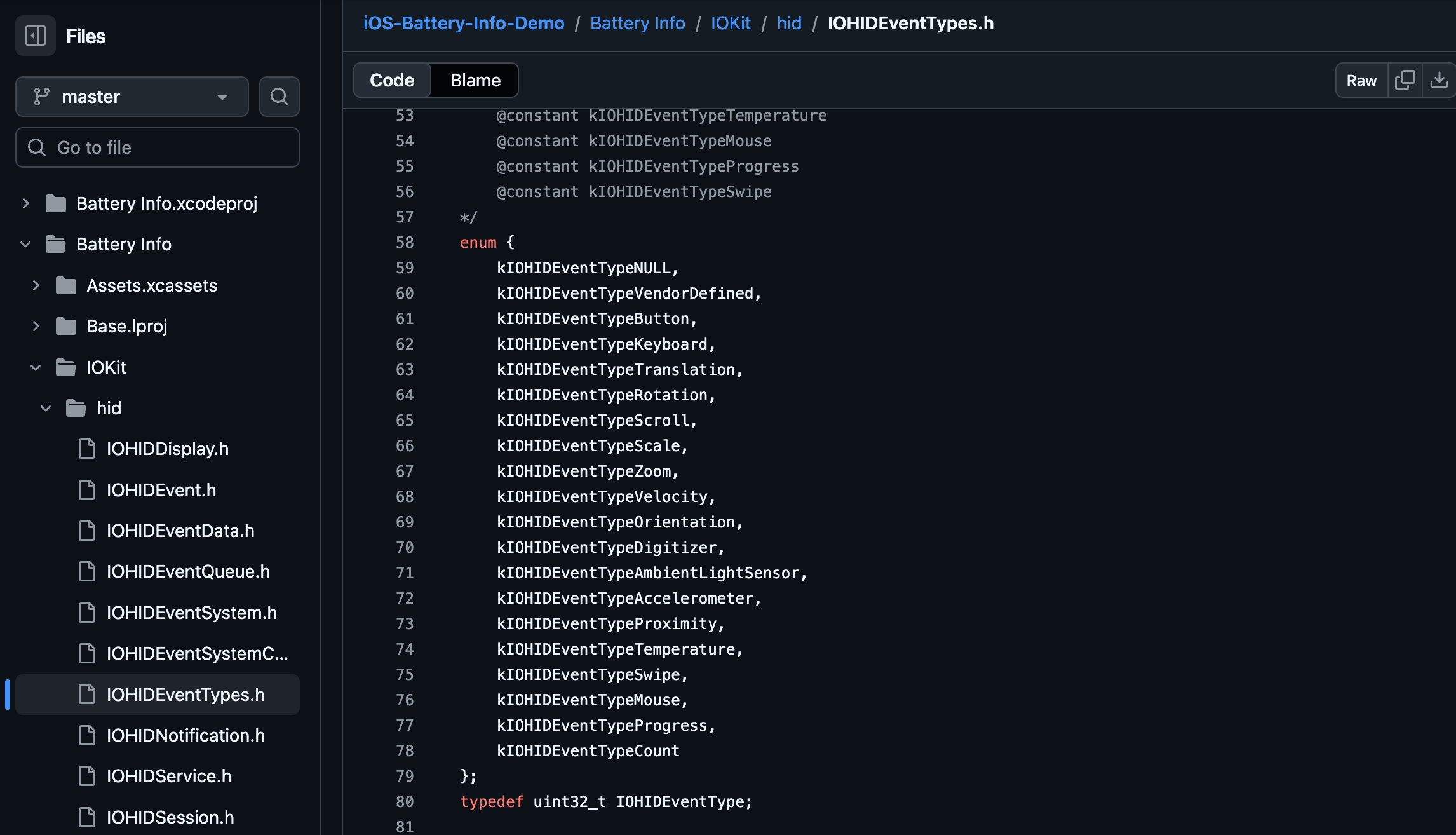
The hardware sends signals that the OS decodes into an IOHIDEvent (IOKit human-interface device event) to represent touch events such as rotations, scrolls, or swipes. This event is sent to backboardd.
backboardd
backboardd is a daemon, which you can tell from the dangling D in its name.
Daemons are background processes run by the OS. Just like their biblical namesake, they never sleep, and they’re always watching you.
In the case of backboardd, it manages system tasks like screen dimming, reads input from hardware sensors like the accelerometer, and handles physical touch events.
This section is slightly hand-wavey because it’s not documented. Apple doesn’t feel the need to, because all this complexity is abstracted away from developers.
My only data sources are old Wikis, unofficial write-ups and reverse engineering dumps. Please bear with me a moment ‘til we land in the run loop.
BackBoardServices is a subsystem inside this daemon that performs bridging between device I/O and userland processes, including your app.
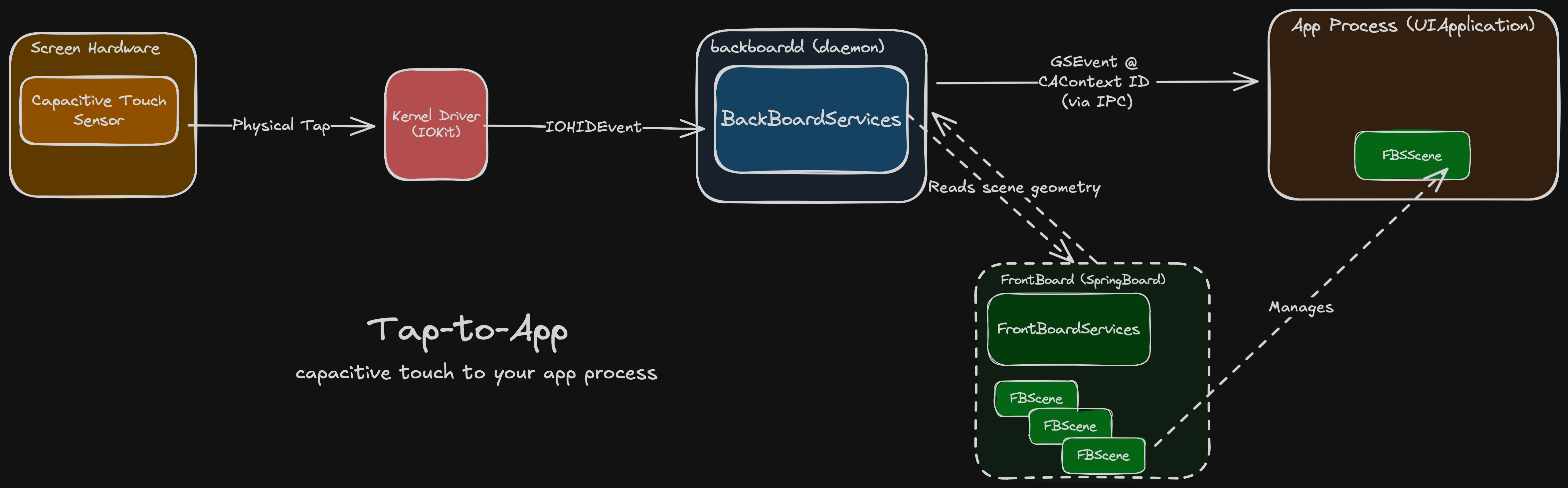
It generates a GraphicsServices event (GSEvent) for the touch and sends it to the relevant app process using inter-process communication (IPC), a secure communication channel provided by the OS.
To determine the relevant app process, backboardd talks to FrontBoard (a part of SpringBoard). FrontBoard is what powers the app switcher, managing the on-screen visible “scenes” for stuff like the home screen and each individual app.
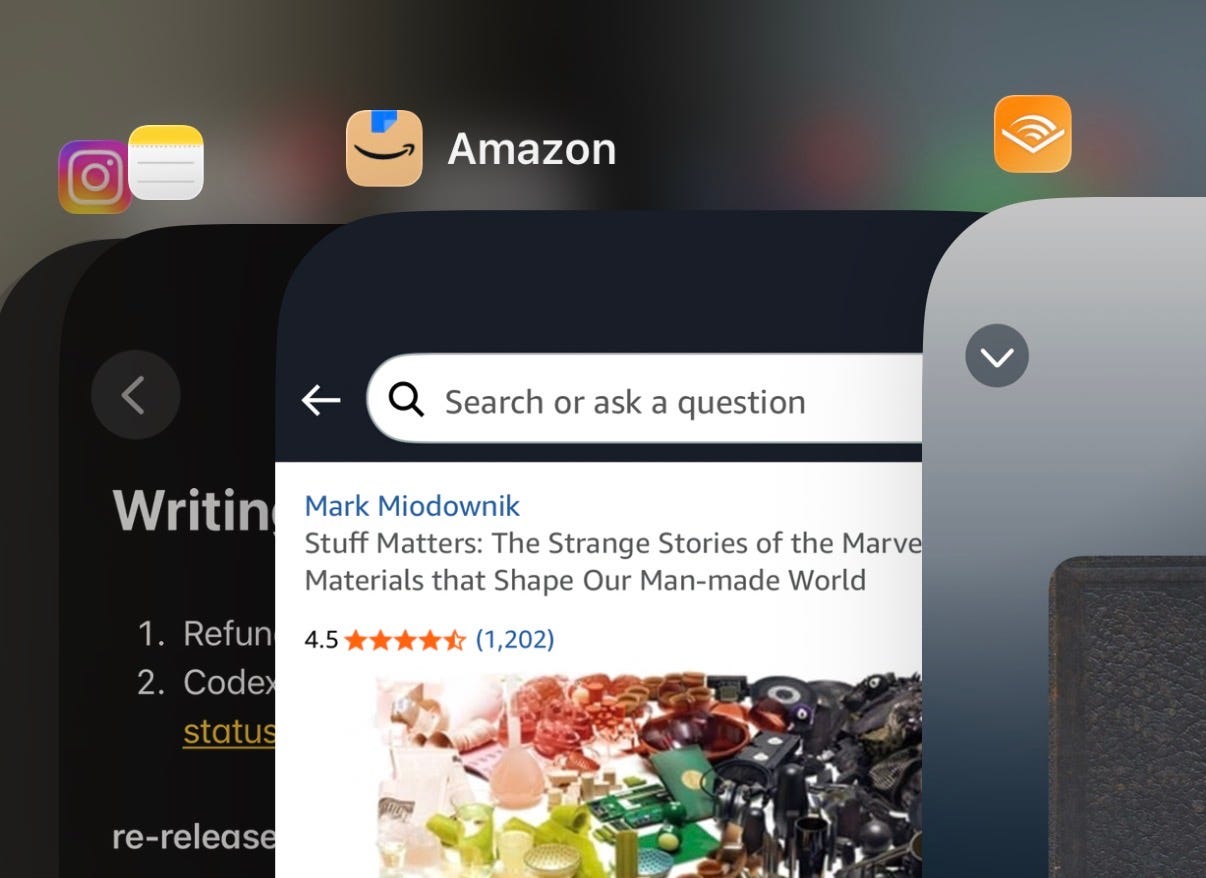
This scene, or FBScene, is associated with your app’s CAContext, or Core Animation context, underpinning all of your UI. BackBoardServices can read out the CAContext’s contextID to determine the correct app process for the touch event, and forward it on.
Core Animation inside your app
The Run Loop
An iOS application process always begins the same way:
The user taps an icon on SpringBoard, the userland home screen app.
The launch daemon launchd performs syscalls to load the app into memory.
iOS calls the main() function in your loaded executable.
In turn this calls the built-in UIApplicationMain() method.
This inits a UIApplication, sets AppDelegate, and starts the main run loop.
Your app begins processing events.
(repeat step #6 until bored).
This run loop behaves like a permanent while loop, offering 2 basic states: waiting for stuff to happen; and doing stuff.
while let await touchInputs() {
    handleTouchEvents()
}
The main run loop of your app is awoken by timers firing, code dispatched to the main queue, and signals from backboardd like our touch event.
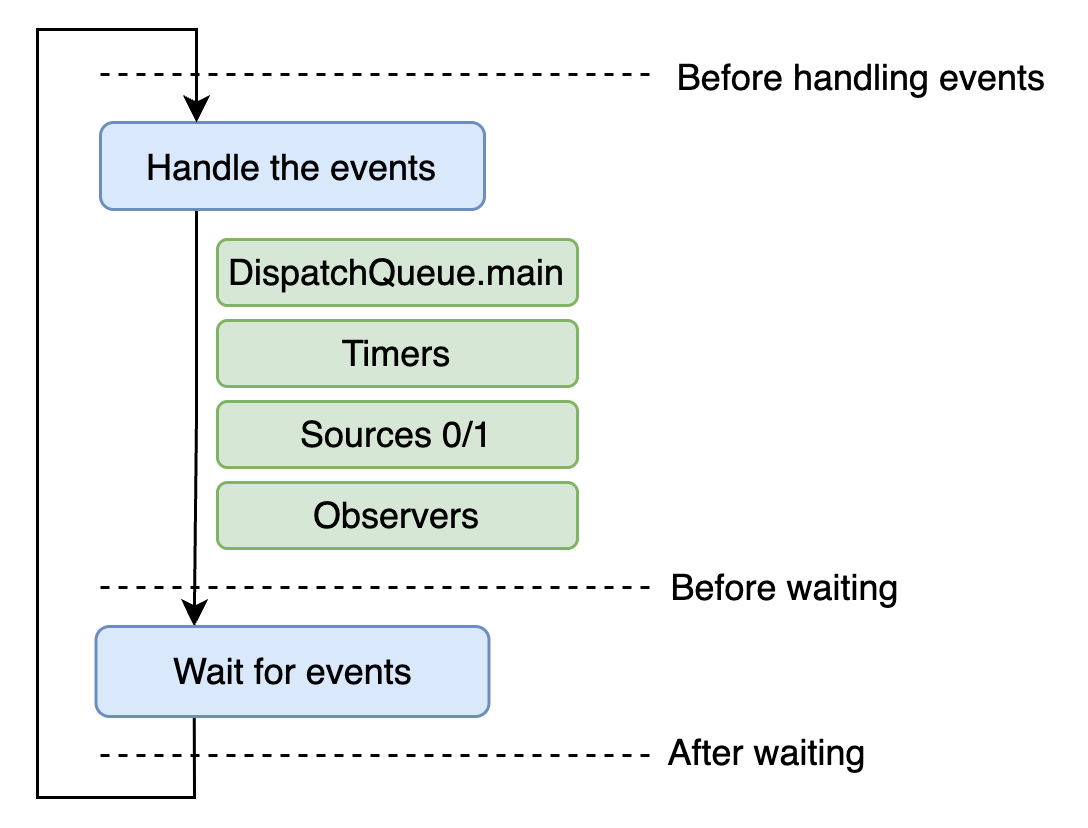
UIEvents
The run loop passes touch events to the UIApplication object, which converts them into UIEvents and dispatches them via sendEvent(_:) to the relevant UIWindow for the active scene. The window, in turn, dispatches the event to a UIView, determining the target via hit testing.
The same process more or less happens with SwiftUI views, but I’ll stick to UIKit for now because it’s better documented and has less ~magic~. If you want a very hand-wavey explanation, the SwiftUI attribute graph maps approximately to the CALayer tree somehow.
The UIWindow forwards the UIEvent to the target view, firing the touchesBegan(_:with:) method, or other appropriate UIResponder method.
Now that we’re no longer mucking about inside subterranean system internals, we might as well demonstrate with a nice visual example to make the most of the light of day.
Let’s create a custom skeuomorphic 3D button by subclassing UIView, complete with the aforementioned UIResponder methods:
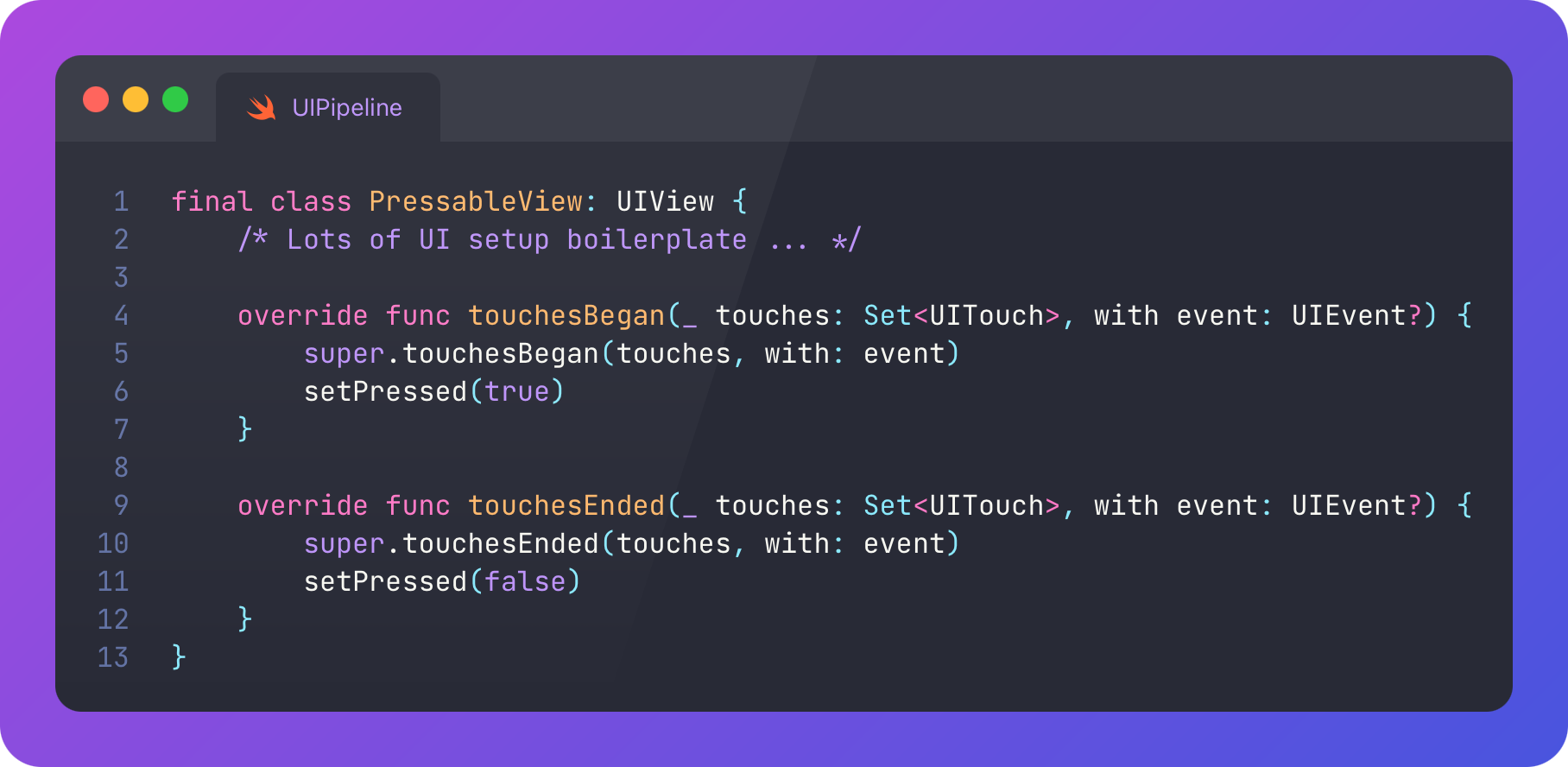
When a user touches down, it presses in. Just like a real button should. No liquid glass nonsense here.
The full pipeline just ran before your eyes.
Back up.
To understand what happens after your tap event is registered, we should clarify that UIViews in UIKit are ultimately backed by Core Animation CALayers.
CoreAnimation, Transactions, and Commits
Core Animation is the fundamental visual core of iOS. The primary API uses layers, lightweight objects with properties like frame, border, filters, shadow, and opacity.
Regardless of whether you’re using UIKit or SwiftUI, the rendering in your app is done using Core Animation: visual content is arranged in CALayers, in a hierarchical “layer tree” owned by the UIWindow.
The main benefit of Core Animation is that it can animate all these property changes super easily (compared to the olden days). You define a timing curve, such as linear, spring, easeInOut, (or even multiple curves with keyframes), to describe how the values of properties change over time. Core Animation interpolates from start to end values, along these curves, to create the visual animation state at each frame. It leverages the GPU to do this performantly via the render server. (I’ll explain soon).
Part of our setPressed() method creates a CATransaction.
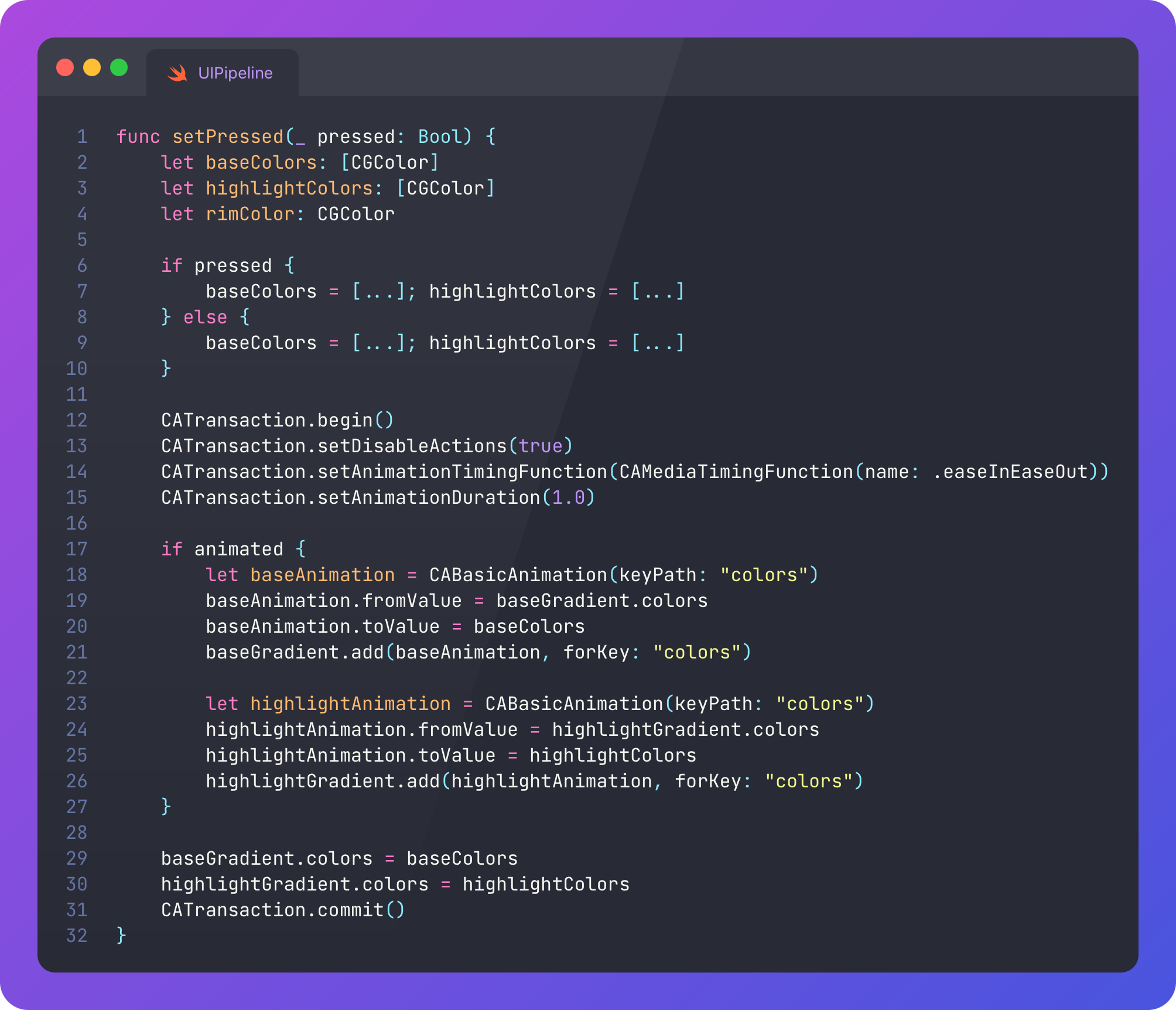
A transaction represents an on-screen visual change or animation. We might batch up our visual changes into a single transaction for efficiency, synchronicity, to share timing code, or to access a completion handler.
Writing CATransaction.begin() and CATransaction.commit() is an explicit transaction, posted to the render server on commit. Implicit transactions, changes without declaring a transaction, wait for the next run loop iteration before they commit*
*You can test this yourself: make a change to a view or layer property, then block the main thread via sleep() commands.
Most UIKit work is done implicitly: consider every time you change the text colour of a label. This is ultimately rendered via implicit CATransactions. At the end of the run loop tick triggered by our initial tap event, the run loop fires CFRunLoopActivity.kCFRunLoopBeforeWaiting, which is observed by Core Animation. If the layer tree has changed, the changes are flushed by performing a commit.
This Core Animation commit has 4 phases:
Layout phase: Core Animation traverses the layer tree and lays out all the layers to the correct position and size. The setNeedsLayout() function can flag a layer for updating (usually on the next run loop tick).
Display phase: During the same traversal (both are done in the layout_and_display_if_needed() function), any required drawing, graphics, or text rendering is performed.
Prepare phase: Misc. extra work like image decoding is done.
Commit phase: The new layer tree is sent down to the render server.
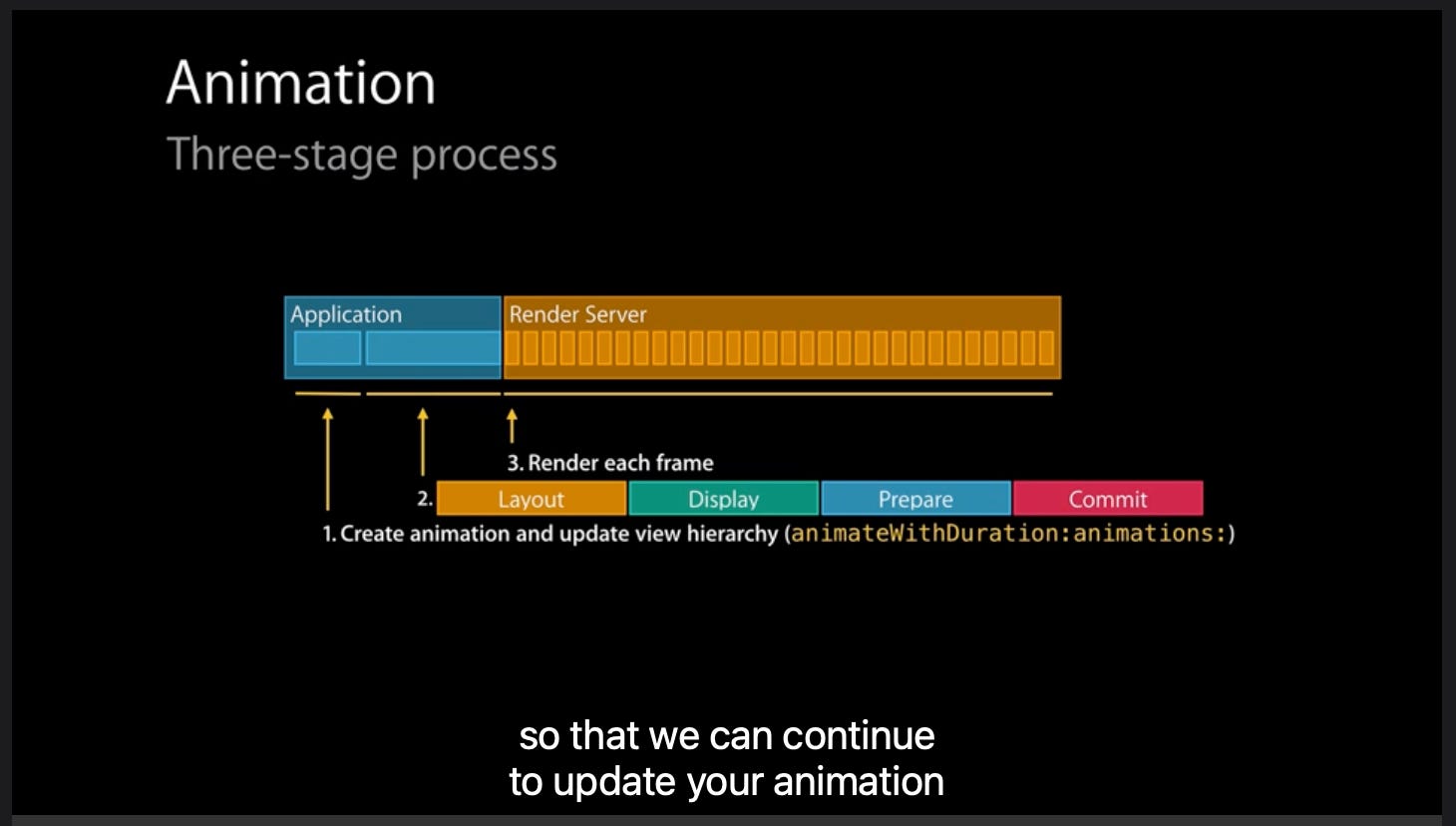
This took me a while to get my head around: The run loop is not ticking constantly, or with every frame. It’s just waiting for events, and responding to events.
It feels like it’s always running, because most of the time, your UI code will be run in response to a run loop wake-up such as a tap, timer, or main thread dispatch.
In our example code, we commit some CABasicAnimations.
These are sent to the render server, a subsystem inside backboardd.
I do hope you had a chance to work on your tan. We’re going back downstairs, into the shadowy bowels of the system.