



Continuous Integration (CI) is one of the great pillars of senior developerdom.
Opportunities to run the gauntlet of setting up effective build, test, & deploy pipelines is commonplace if you live and breathe greenfield projects, but what if you work on a mature project by day?
If you’ve not set up CI pipelines before, it puts you at a disadvantage as an engineer, since this automation is table stakes for any new project. Today, I’ll show you how to set up CI on your side projects. For free!
Part I: Fastlane
Part II: App Store Connect
Part III: GitHub Actions
I’m implementing CI for Bev, my trusty open-sauce project, but follow my lead to get the same results for your own codebases.
Part I: Fastlane
Fastlane is an open-source set of Ruby scripts which automate builds and deployments. They are essentially user-friendly wrappers over xcodebuild or Gradle commands which help you automate standard workflows.
To set Fastlane up, just read the damn docs.
For once, I am going to resist turning this article into a 6,000 word behemoth.
Let’s set up two really simple lanes for testing (to run on each PR) and deployment (to run each time we merge to main).
fastlane test
Our test lane, specced out in the Fastfile, could not be more straightforward:
desc "Run tests on each PR"
lane :test do
    scan(device: "iPhone 15 Pro",
         scheme: "BevTests")
end
scan runs the tests for a given scheme in our app — here, we’ve set up a test plan which includes a comprehensive unit & UI testing suite. We can run fastlane test locally, and rapidly see our first success.
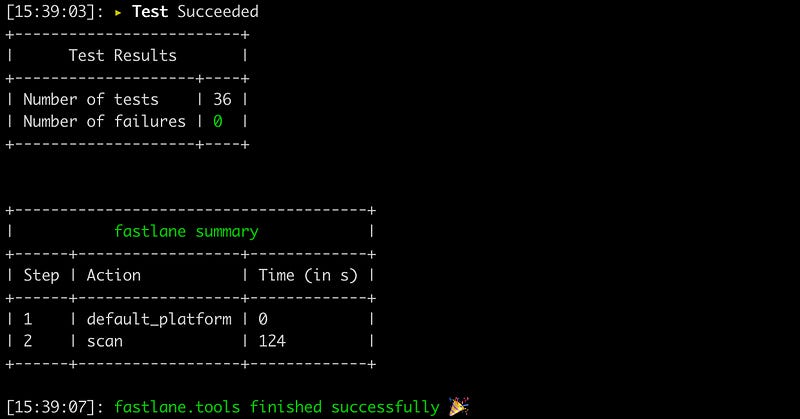
fastlane test`fastlane deploy
The deployment lane is a little more complex, since we need to manage certificates, archive our app, and submit to App Store Connect. Here’s a slightly simplified form:
desc  "Deploy app to App Store Connect"
lane :deploy do
    match
    gym
    api_key = app_store_connect_api_key()
    deliver(api_key: api_key)
end
Working backwards…
deliver uploads our signed
.ipafile to App Store Connect.app_store_connect_api_key loads our API token in a form we can use with other Fastlane commands.
gym builds the app’s Release variant and packages up our
.ipa.match installs certificates and provisioning profiles.

If this isn’t your first rodeo, you won’t be surprised to hear that this didn’t just work first time — we had to actually go through a substantial amount of setup work.
match is the first major difficulty spike in our continuous integration.
fastlane match
The match command helps to automate and unify the creation, storage, and management of code-signing certificates and profiles for your team. More importantly, it gives your CI machine the ability to sign releases without needing to store credentials on Git.
This is a major reasons that senior devs like to gatekeep CI: match is both mandatory to understand and a little scary to get to grips with.
If you suffer from impostor syndrome, you are welcome to look at the number of failed builds in my repo.
To set up, run fastlane match init and follow the step-by-step guide in the CLI to securely store your certificates and provisioning profiles.

Personally I favour the Google Cloud storage mode, since (1) the secret is pretty simple to manage, (2) it has a generous free tier, (3) most mobile devs will already have a Google cloud account via Firebase, and (4) it’s pretty easy to set up a project.

Google Cloud Tips
If you choose Google cloud storage, the steps in the CLI are slightly unclear, so I thought I’d give some extra guidance:
The
gc_keys.jsonfile created byfastlane match initcontains aclient_email, e.g.jacobsapps@jacobsapps.iam.gserviceaccount.com.In the Google Cloud Storage bucket that contains your keys, give admin access to this email address .
For fastlane match to work, the gc_keys.json needs to live in your project folder, but it’s critical to ensure keys are kept out of source control, so make sure to .gitignore it immediately. We will be adding them as secrets to our CI system shortly.
Now, we can run fastlane match appstore, enter your App Store Connect credentials, and set up the distribution profiles on the key store. fastlane match generates certificates and profiles, and stores them in the Google Cloud keystore we’ve just set up.
The Full Deployment Pipeline
Now we have our code signing set up, we can flesh out the rest of our deployment pipeline:
lane :deploy do
  match(readonly: true)
  api_key = app_store_connect_api_key(
    key_id: "V4D62Q8UQB",
    issuer_id: "69a6de92-2bb4-47e3-e053-5b8c7c11a4d1",
    key_content: $APP_STORE_CONNECT_API_KEY_KEY,
    is_key_content_base64: true
  )
  increment_build_number({
    build_number: latest_testflight_build_number(api_key: api_key) + 1
  })
  gym(export_options: "./fastlane/ExportOptions.plist")
  deliver(
    api_key: api_key,
    force: true,
    skip_screenshots: true,
    precheck_include_in_app_purchases: false
  )
end
This has a few improvements from the simplified version above.
matchis running inreadonlymode, recommended for CI systems as it won’t attempt to create new certificates and profiles.api_keyfetches our App Store Connect API key so we can automate the deployment step — we’ll explain everything here in the next section.increment_build_numbersimply increases the build number automatically so we don’t need to keep track of it, fetching the latest from TestFlight.gymis now fetching export options from a local file that tellxcodebuildhow to package the app.deliveris overriding a few defaults to make our upload faster.
Now that our local pipeline is in place, and works locally, we can start pulling together our infrastructure: the App Store, and the GitHub Actions runner.
Part II: App Store Connect
To ensure we can actually deploy our app, we need to go to App Store Connect. If your app isn’t already here, add it now.

Creating our App Store Connect API key
Head to Users and Access to set up an App Store Connect API key — we’ll need this later when we start deploying!

Download the file as a .p8 and put this file somewhere secure.
Files are hard and strings are easy. Therefore, I like to base-64-encode the key for use in Fastlane — use this terminal command from inside the folder containing the key:
cat AuthKey_A4D72Q2UQC.p8 | base64We can take this encoded API key, along with the key_id and issuer_id listed on the App Store Connect Users and Access page, and add them to our Fastlane script:
api_key = app_store_connect_api_key(
  key_id: "V4D62Q8UQB",
  issuer_id: "69a6de92-2bb4-47e3-e053-5b8c7c11a4d1",
  key_content: $APP_STORE_CONNECT_API_KEY_KEY,
  is_key_content_base64: true
)
What’s APP_STORE_CONNECT_API_KEY_KEY in key_content you might ask?
This is our next secret.
Since this API key can submit apps to our account, we need it on lockdown, and far from source control. Note the base-64 encoded key somewhere safe for now; we’ll deal with secrets in Section III when we set up GitHub Actions.
To test locally, you can go ahead and run fastlane deploy with this base-64 encoded API key hardcoded, to make sure you can run the lane correctly and see the uploaded app on App Store Connect — just make sure not to commit the fastfile with the API key.
While GitHub Actions allows you to give any name to your secrets, you need to use the exact name
$APP_STORE_CONNECT_API_KEY_KEYto reference the environment variable of a base-64 encoded .p8 secret. Delve into the Fastlane repo issues for more context on this.
App-Specific Password
There are some Fastlane services for which the API key isn’t sufficient.
To cover all your bases, you can also generate an App-Specific Password for Fastlane services, which authenticate your automation as your own App Store Connect account.
Go to appleid.apple.com and choose Sign-In and Security, then select App-Specific Passwords and add one.
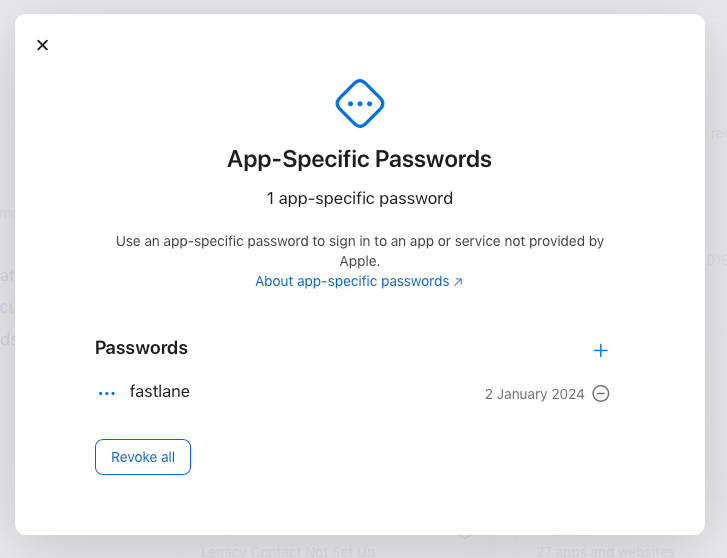
Again, note this password somewhere safe until we add it to our GitHub Actions secrets shortly.
Now we’re ready for prime time.